
How to Connect to K1VPN Using Our App
Step-by-step guide for your first connection with K1VPN - from your dashboard to your chosen server.
Last updated:
There are several ways to connect to the K1VPN network and enjoy secure, anonymous browsing. All methods provide the same top-tier level of security, but the easiest and fastest is our official app - available for Windows, macOS, iOS, Android and Linux.
The process is the same across all devices. Colors and the app's appearance may vary slightly depending on your device settings and operating system, but the steps are equally straightforward.
Step 1: Download the App
Go to the apps page and download the K1VPN app for your operating system. You can also download it from your dashboard under the appropriate tab.
WARNING: For security reasons, the username/password you use to log into your dashboard is NOT the same as the credentials you will use to connect to the VPN network. You will need to access your dashboard to retrieve the correct credentials.
Step 2: Find Your VPN Credentials
If you paid by card: Log in to the login page using the email and password you provided during registration. If you have forgotten your password, you can reset it from the same page.
If you paid with cryptocurrency: Log in to the anonymous login page using the username and password that were shown on your screen before the payment - the ones you noted down or saved in the txt file.
Important for cryptocurrency users: If you have lost your dashboard login credentials, unfortunately there is no way to recover them. Make sure to save them in a safe place before completing your payment.
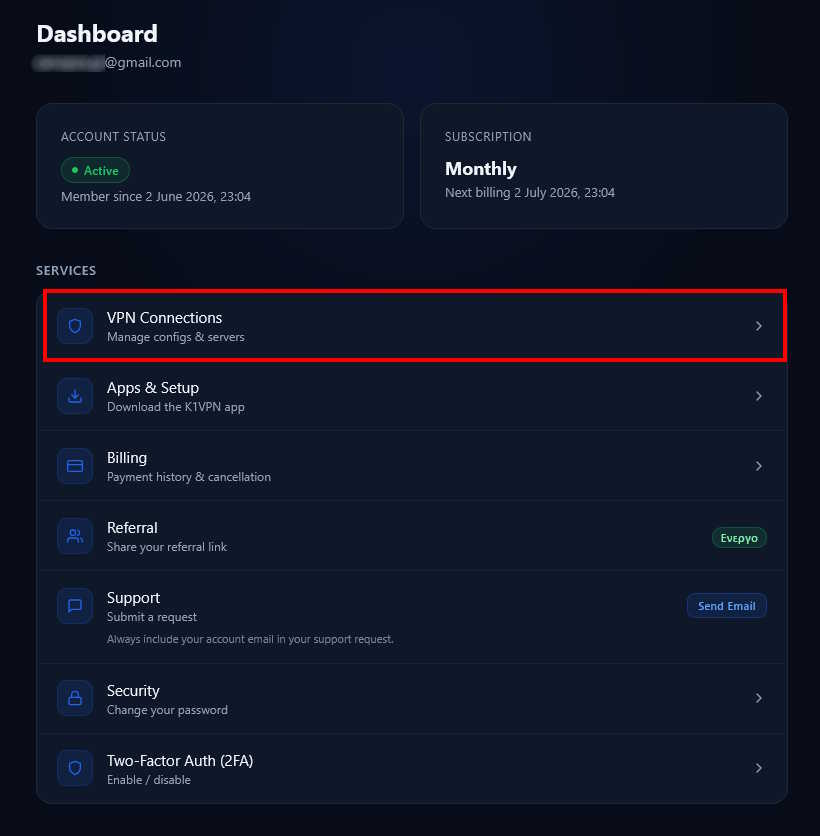
Once logged into your dashboard, select the "VPN Connections" card.
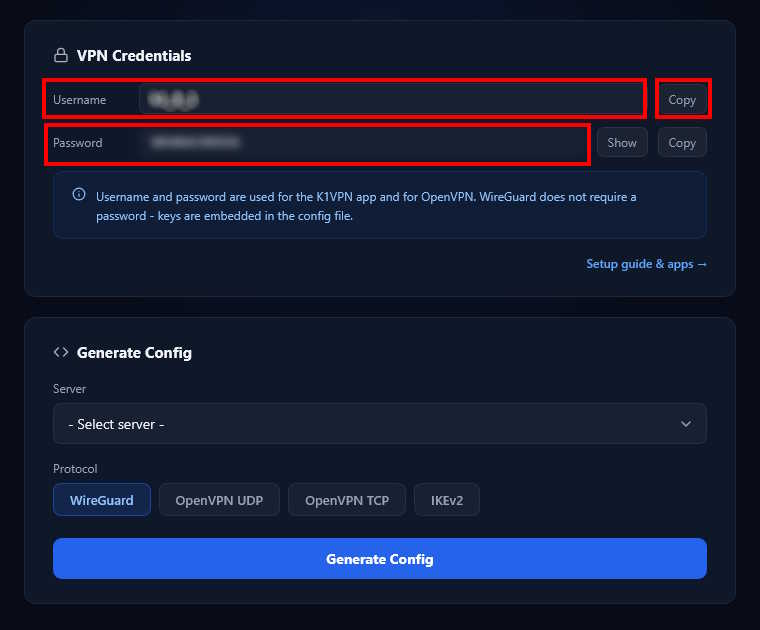
You will be taken to the page displaying the username and password you need to connect to the VPN network. Note them down or use the "COPY" button to copy them quickly.
Step 3: Launch the K1VPN App
Open the K1VPN app on your device. You will see the login screen:
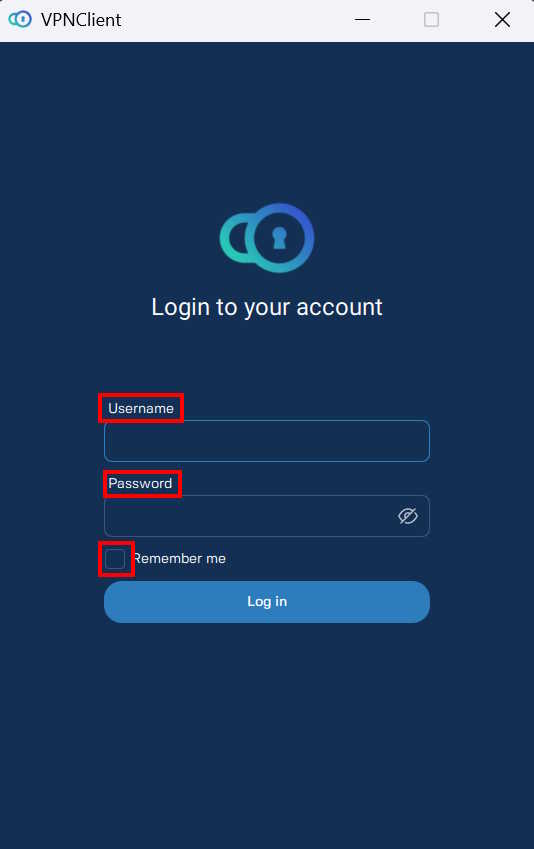
Enter (or paste) the username and password from your dashboard into the corresponding fields. Enable "Remember me" so you don't have to enter them each time. Press "LOGIN".
On the next screen, you will see the server selection field. Tap it to proceed:
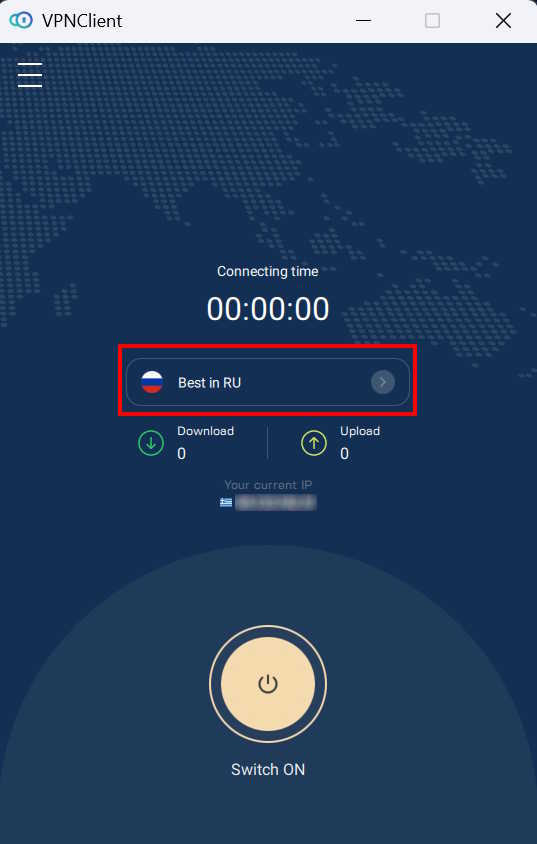
The full list of available locations will appear. Choose the one you want:
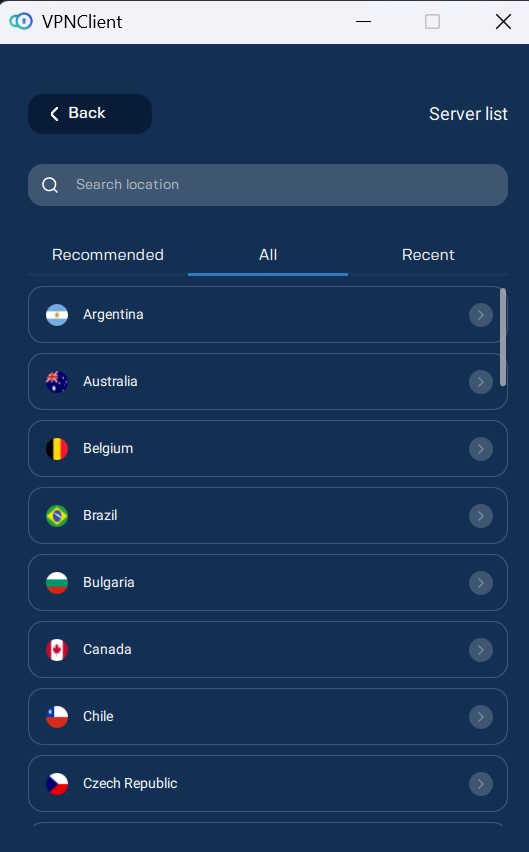
After selecting, you return to the main screen. Press the central "SWITCH ON" button:
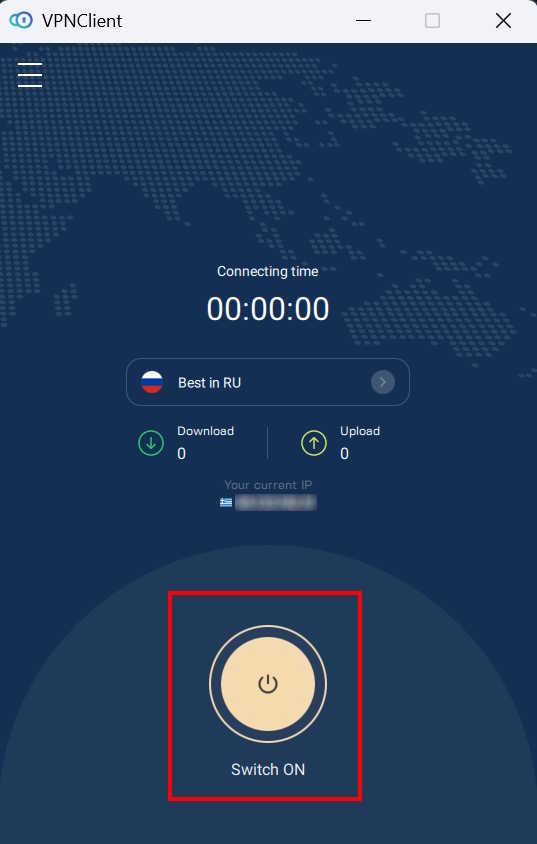
Within a few seconds you will be connected and the timer will start counting your session time. Congratulations - you are now protected and can browse anonymously online!
Note: The button changes color only when the connection has been successfully established, not when you press it. This is intentional - wait for the color change before you start browsing.
For more tips on security and anonymity online, visit our Security & Privacy category. For updates about the K1VPN network, check K1VPN News, and for general privacy-focused industry news, Industry News.