
How to Connect to K1VPN on iOS and Android Using the WireGuard® Protocol
Step-by-step guide to connecting K1VPN on iPhone and Android using the WireGuard® protocol - scan a QR code to connect in seconds, no manual entry required.
Last updated:
In this guide you will see how to get secure and anonymous internet access with K1VPN on your iOS or Android phone, using the open source WireGuard® app. The fastest method for mobile devices is scanning a QR code - no need to copy any details by hand.
Step 1: Generate the QR Code from the Dashboard
If you paid by card: Log in to the login page using the email and password you provided during registration. If you have forgotten your password, you can reset it from the same page.
If you paid with cryptocurrency: Log in to the anonymous login page using the username and password that appeared on your screen before the payment - the ones you noted down or saved in the txt file.
Important for cryptocurrency users: If you have lost your dashboard login credentials, unfortunately there is no way to recover them.
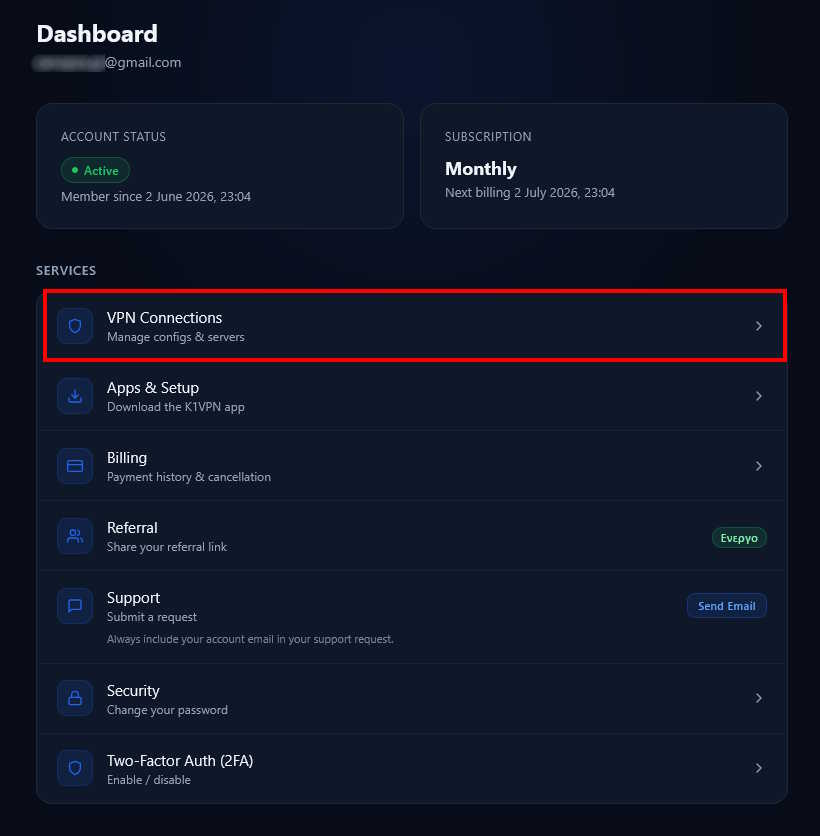
Once logged in to your dashboard, select the "VPN Connections" card.
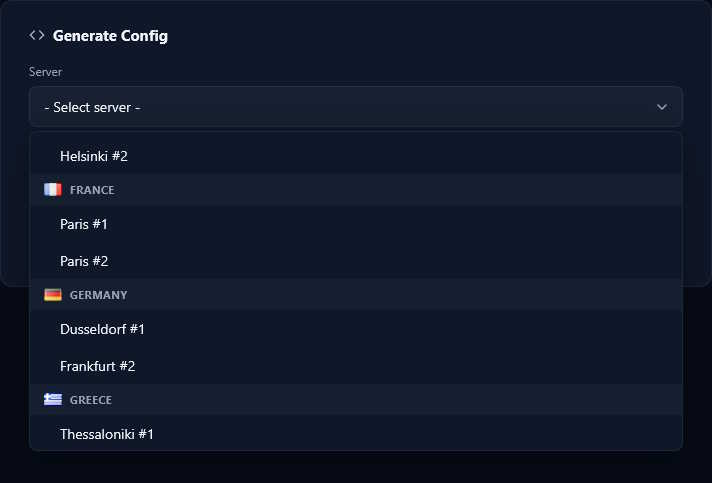
You will be taken to the configuration retrieval page. Scroll down to the "Generate Config" card and select the server you want to connect to.
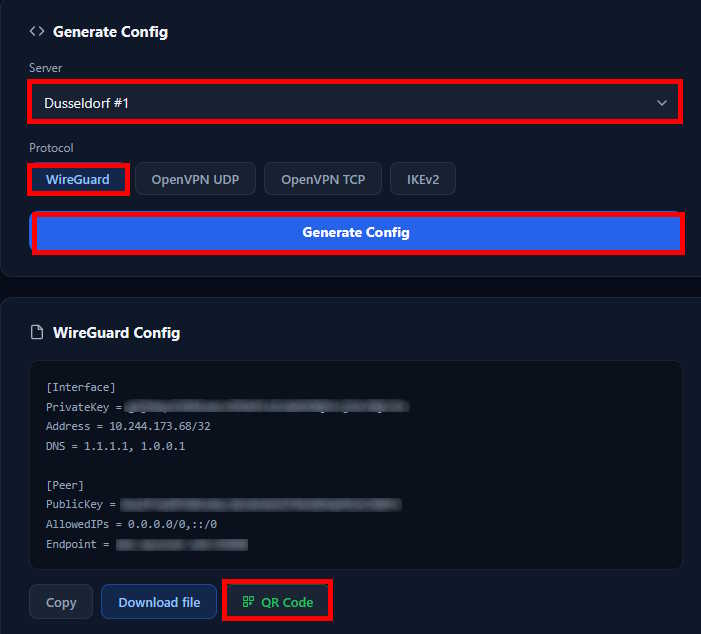
Select the WireGuard® protocol and click "Generate Config". The connection details will appear along with the "QR Code" button.
If you prefer the manual method, or you want to connect a computer, follow the Connect using WireGuard® on Windows, macOS and Linux guide instead.
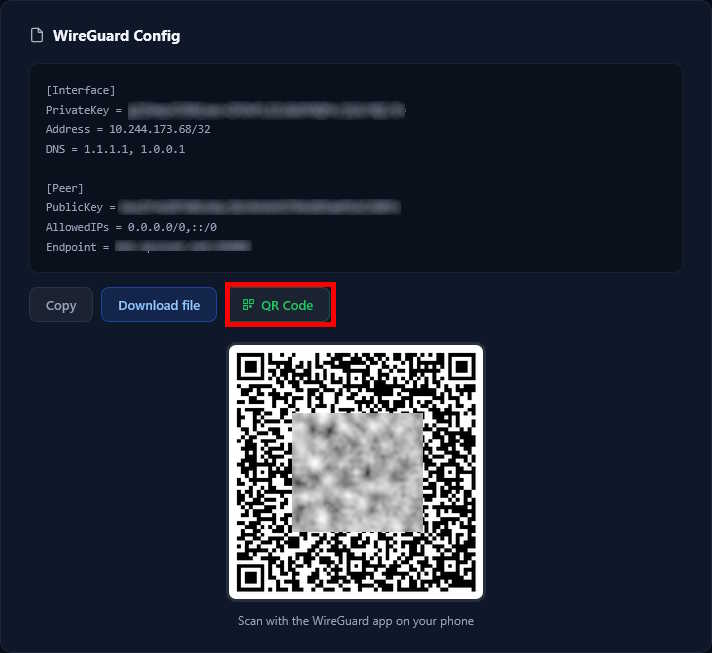
Click the "QR Code" button and the QR code will appear, ready to be scanned. Stay on this screen - you will need it in the next step.
Step 2: Install and Configure WireGuard® on Your Phone
Download the WireGuard® app from the App Store (iOS) or Google Play (Android). You can also find it by scanning the QR code on our downloads page.
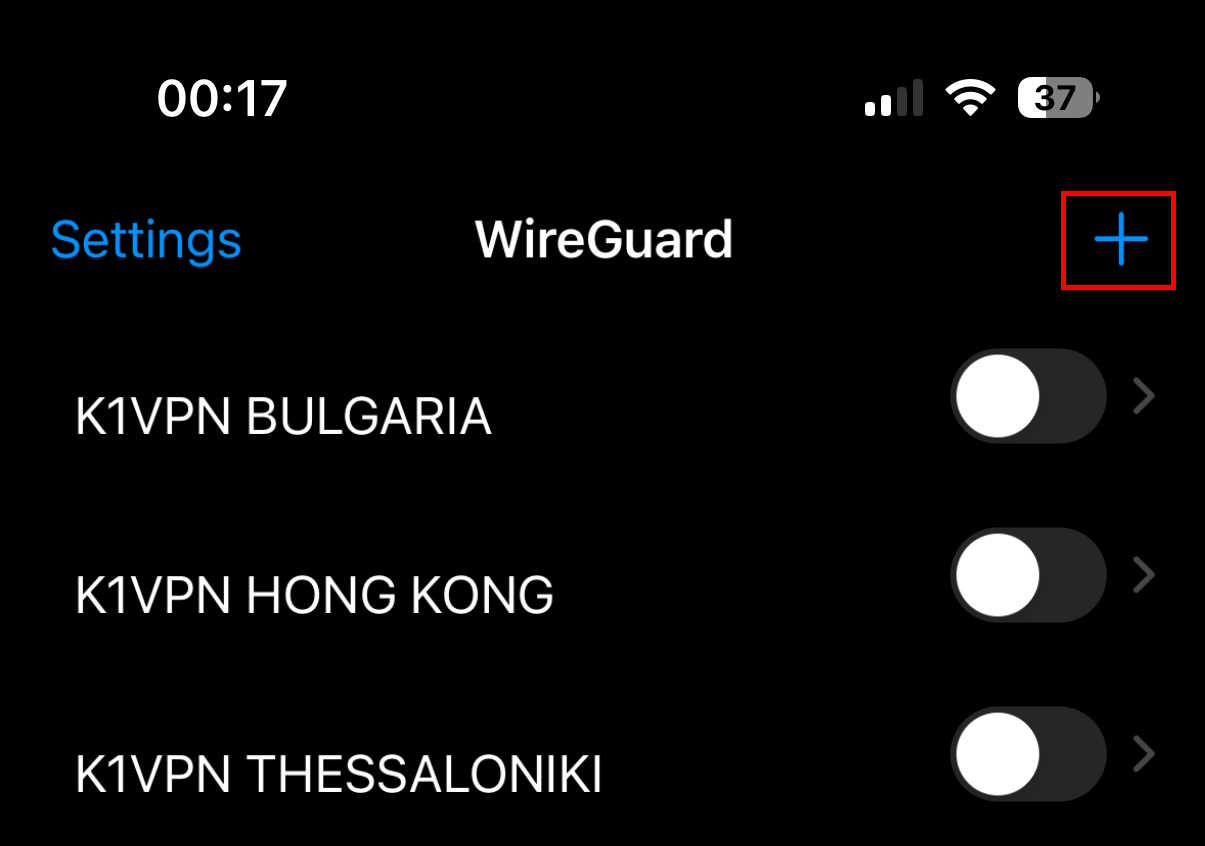
Open the app and tap the "+" button in the top-right corner.
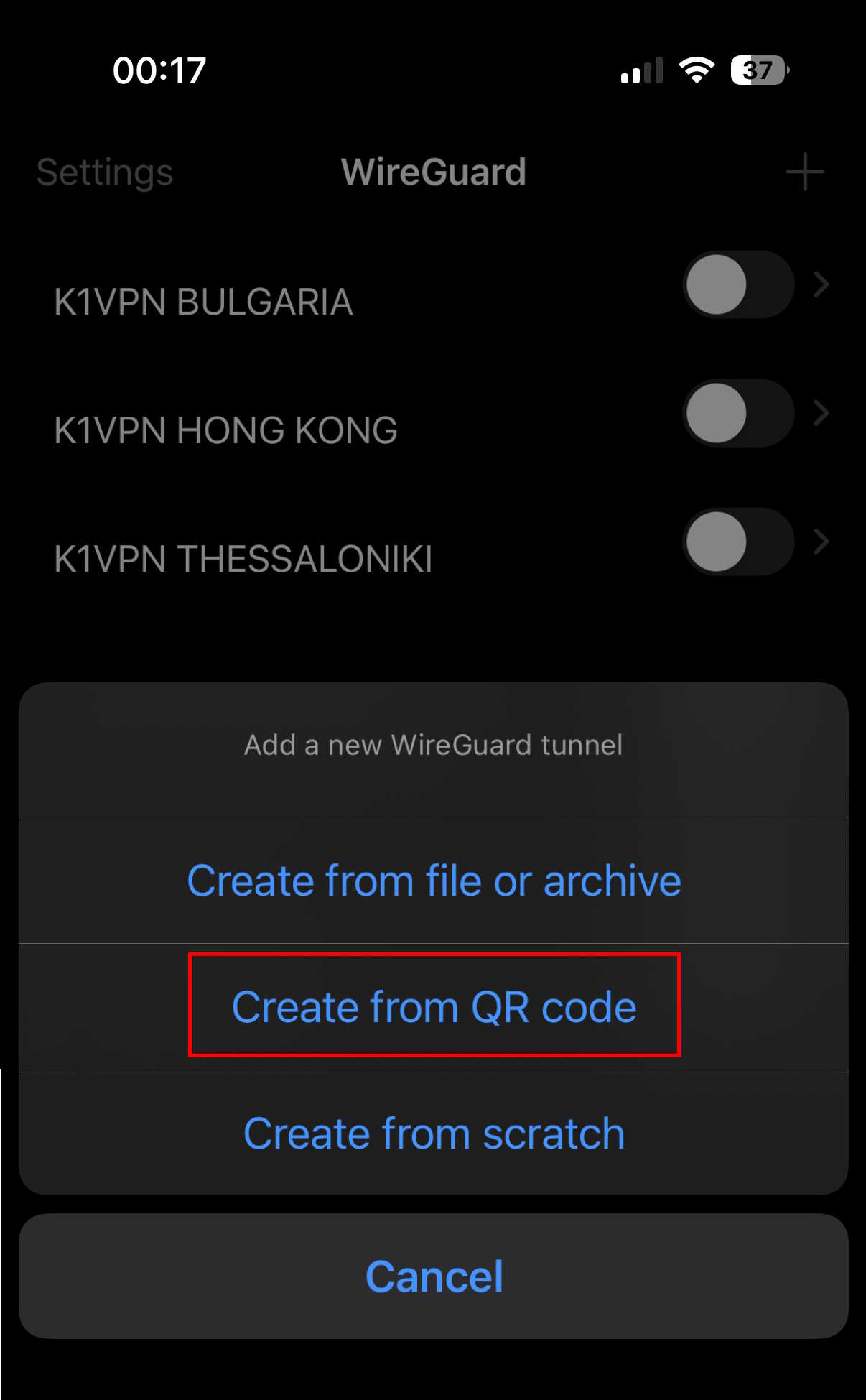
The new tunnel options card will appear. Select "Create from QR code".
Your device's camera will open (you will need to grant the app the necessary permissions). Scan the QR code you generated in Step 1.
Give the tunnel a descriptive name - e.g. "K1VPN UK" - so you can easily identify it among others.
Step 3: Activate the Tunnel
Select the tunnel you just created and tap "Activate".
Congratulations! You are now successfully connected to K1VPN via WireGuard® and can enjoy maximum speeds and security while browsing.
Note 1: You can create and save as many tunnels as you like, but you can only be connected to one at a time.
Note 2 - WireGuard® multiple connections limitation: Due to the protocol's architecture, you cannot have more than one active connection simultaneously to the same server. All your tunnels share a single Private Key - if you try to connect with a second tunnel, depending on the last handshake, one of the two connections will be inactive even if the WireGuard® app shows it as active.
This limitation does not apply when using the K1VPN app, OpenVPN® or IKEv2 - these protocols use username/password authentication and support up to 10 simultaneous connections from different devices.
See also: Connect using WireGuard® on Windows, macOS and Linux - the same process for your computer. Connect using the K1VPN app - the easiest method for all devices. Connect on iOS without an app (IKEv2) - an alternative method using the built-in iOS client.
For more tips on security and online anonymity, visit our Security & Privacy category. For K1VPN network updates, check K1VPN News, and for general privacy-focused industry news, Industry News.